Some deliveries may take a little longer than usual due to regional shipping conditions.

DOWNLOAD THE APP


Customer Services
Copyright © 2025 Desertcart Holdings Limited
DOWNLOAD THE APP

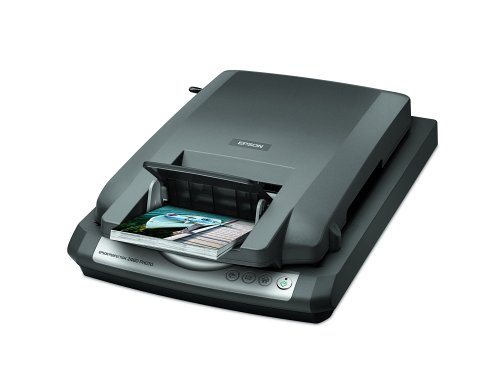
📷 Scan Your World, One Image at a Time!
The Epson B11B172171 Perfection 2480 Limited Edition Photo Flatbed Scanner is designed for professionals who demand high-quality scanning. With a remarkable resolution of up to 2,400 x 4,800 dpi and 48-bit color depth, it captures every detail in vibrant clarity. The built-in film strip and slide adapter, along with a convenient photo feeder, make it easy to digitize your memories. Plus, its user-friendly 4-button operation and USB 2.0 compatibility ensure a smooth experience on both PC and Mac.
D**A
Digital imaging made simplified!!!
I just bought this scanner, and have only used it a few times, but I'm already blown away by how easy this is to use! Since my first two kids were born before digital cameras, I have boxes of photos to "digitize". This is making very quick work of it. I like the fact that it even accomodates the older square photos from when I was a kid. It has a color restoration feature on it for these older photos, and so far, so good. It quickly and easily converts back to the standard flatbed for bigger photos. I would definetely recommend this to anyone with a large amount of hard copy photos they would like to preserve.
S**R
Bad experience with reliability and service
I received this scanner from a low-price Amazon merchant, cincynow, promptly and in apparently good condition. Set-up was straightforward, and I began my big photo-scanning project of about 1,000 photo's of various sizes by sorting them by size. The feeder had difficulty with many of the older, thicker photographs, and the manual advises that it will not feed Polaroids. After about 300 scans the scanner (not the feeder) locked up with a blinking-red-light error that could not be fixed. This was on the first day that I owned the scanner, so I question the reliability of the scanner, although other customers have reported better luck. The vendor, cincynow, had no written return policy, and refused to replace the product, even though it was defective. I am disappointed that Amazon allows such merchants to hide behind the veil of Amazon legitimacy. Amazon has an appeal process that entails weeks of waiting before submission. So I advise you to check the merchant's return policy carefully (and make sure there IS one!) so you don't get stuck like I did. I found that Epson "support" (they call it that, I don't) was nearly useless. They told me that the vendor should replace the product. I hope you learn from my mistake!
P**.
A good scanner with the unique feeder feature
Cropping issues: Any time you manually place a photo on the glass of a scanner, your placement is likely to be rotated slightly. My Canon LIDE 20 software addresses this conservatively, cropping none of the photo, sometimes resulting in a thin wedge of white at the edges. (To remove this, you need to crop it in a photo editor, or re-scan with correct alignment.) This may be the correct implementation for a platen-only scanner, but it can be disappointing when scanning in quantity. Accordingly, the Epson software crops all edges slightly, up to 0.1 inch, in "Full Auto Mode". Also, my test scans on the glass were cropped 0.2 inch (from the 4x6 original) on the edge that I had butted against the front edge of the glass. Butting against an edge is usual, to help get the angle right. Butting against the left edge instead, increased crop on that butted edge to 0.2 inch. My Canon scanner does not have this problem. The Epson 2480 scanner would probably not be my choice, except for the feeder. The crop may be a little less on feeder scans, and does not suffer from a bad edge.Comparing TIFFs at 600 dpi on screen: I cropped a section out of some scans, and compared them, as well as the originals. The Canon, Epson (glass) and Epson (feeder) scans were all noticeably different. The Epson scans appear square - no noticeable difference depending on orientation of the scan, when then rotated to be the same for display. The scans from the Canon appear to be slightly out of square, but this could be a problem due to the age of the scanner. The Canon scans are softer and brighter, generally having more accurate color on screen, on my test photo. (Auto-levels in PhotoShop Elements 3 made the Epson scans at least as good, on screen.) To me, the Epson (glass) scans were very slightly better than the Epson (feeder) scans, in image quality (colors were the same). In "Full Auto Mode", you don't get to tweak any options that might brighten the images, etc. (It is worth noting that I cannot calibrate my LCD display - your mileage may vary.)Lower resolution: Epson scans at 400dpi or Canon at 300dpi are perfectly acceptable on screen, hardly distinguishable from 600dpi. Scans of 4x6 prints will never be any better than the print. If you want an 8x12 of comparable quality, you need to go to the negative/slide, a medium that's meant to be enlarged. The negative/slide scanner is suitable only for occasional use, due to lack of Digital ICE. Get your compressed air ready, to clean those things before scanning - and re-scanning! Dust on the negative is a major issue. The quality of the scans is very good.Print comparison: I usually use a web print service, but I did not have time to wait. On my Canon i950, I printed (1) Canon 600 dpi, (2) Epson feeder 400 dpi, (3) glass 600, (4) feeder 600, (5) feeder 600 with partial auto-levels from PSE. [All were on Canon Photo Paper Pro - I had to re-do two I had done on Plus paper, which was substantially inferior in color.] The only print that we judged acceptable [close enough to the original] was (4) Epson feeder at 600dpi. The others all were inferior in cropping, sharpness, and/or color. The Canon scan had brighter colors than the original, and was a little less sharp. The major cropping of the Epson platen scan, exacerbated by the Canon printing software, resulted in prints that looked less sharp than the feeder print, probably due to stretching to 4x6. The 400 dpi feeder scan was slightly less sharp than at 600dpi, but otherwise the same. We expect better print quality, with a professional print service. [All scans for this test, Full Auto].Other: "Always use the document table to scan important, valuable, or one-of-a-kind photos.... Dust, friction, or a feed jam may cause damage to the photo... if you load it in the feeder." My test print did eventually get scratched. There is no power switch - you will have to plug and unplug it. (The Canon is USB-powered, making this a non-issue.) When buying a scanner, be willing to pay a little more for a decent return policy - I bought mine at Amazon - they're great!The Home mode appears useless. In Professional mode, scans require manual cropping, which is relatively easy at scan time. This eliminates the over-cropping problem, at the cost of quite a bit of time. No cropping was needed next to the edge of the glass, indicating a dead space there, though I forgot to check.Important issue: 4x6 prints are inserted into the feeder 4-inch side first. This results in portrait orientation scans. Landscape (horizontal) scans need attention, to see them sensibly on the computer. Windows XP will rotate these for you, with the click of your mouse. However, if you scan JPEGs, this is a lossy rotation - every time you save a JPEG, you lose something. The compromise proposed by Chris Breeze is to scan TIFFs, rotate them (which is lossless), and then convert them to JPEGs.I use BreezeBrowser Pro, which will perform lossless rotation of JPEGs. This works great for digicam images, where the image dimensions are usually an exact multiple of the 4/8/16-pixel tile size. However, batch scans from the Epson 2480LE (or most other scanners) do not have these perfect dimensions, so lossless rotation cannot work correctly. Here how I'm getting around this problem:1. Insert the prints into the feeder face down.2. Set the scanner to 400 or 600 dpi, for TIFFs, and scan the images to C:\My Pictures\Scans.3. Fire up BB Pro, go to the Scans folder, highlight all the Landscapes (Ctrl-click as needed) and rotate them 90 degrees in the correct direction. (If the Portraits are 180 degrees off, rotate all pics once, and the Portraits again.)4. Highlight all the pics. If they are in reverse order, use View - Image Order - Reverse Sort Order. Or, drag & drop as needed, to get the images in the desired order.5. Use Tools - Batch Rename, As Displayed. I use yyyy-mm-ddd %n name, e.g. 2005-02-23 001 Neat Place.6. Edit the TIFFs, as needed (select an image, then Ctrl-D, to fire up your configured image editor).6. Ctrl-A to select all, then Tools - Proofs - Proof Selected, to convert all the images to JPEGs in the Scans\proofs folder (check no boxes). I chose to use 95/100, which resulted in files ranging from 650K to 1.5MB.7. Delete all the TIFFs (one click) - I set BB Pro so that mine land in a Deleted folder, so I'll have to haul them away later (a real winner, on occasion).8. Put the JPEGs where I want them....Bottom line: We decided to keep this scanner. It was a close call, but we have thousands of prints to scan, and there does not seem to be any other affordable option. The Epson 2480LE is definitely at its best for this purpose.------Update 8-11-2012: There is no Windows 7 driver for this device. I'm thinking of reinstalling XP on my old computer, mostly to use this scanner. I would not get another Epson with that kind of support, so I got a Canon CanoScan 9000F Color Image Scanner for my new Windows 7 system. It scans really fast. I seldom have time for photo scanning any more, so I have not yet posted a review for it.
C**R
Awesome for scanning many photos
The purpose of buying this product for me was to take advantage of the multi photo scanning ability - in particular I was focused on the photo feeder mechanism which most reviewers said worked pretty well. You must, of course, make sure the photos are clean and the feeder will get tripped up if the photos are bent at all, but this is pretty par for the course as far as feeders go. The feeder works pretty well.What has gone way beyond my expectations are some cool features on the flatbead scanner. First of all, you can set the scanner for an auto mode and it will automatically detect the kind of document you are scanning and set the save settings accordingly. You can also set these manually, but I have found that unnecessary and love having the ability to scan in random documents (photo, to text, black and white, color) one after the other without messing with anything.ALSO - this is the coolest - I placed multiple photos on the flatbead scanner and let it go on its auto settings and it AUTOMATICALLY saved each photo as a separate document and cropped the saved images perfectly. I can't tell you how much time this saves me. No more cropping and saving and resizing.I am very happy with this scanner for my need to scan in and save lots of old photos!!
S**E
Would not feed a picture. It kept saying jam ...
Would not feed a picture. It kept saying jam. Tried different photos and still would not work.Must have had a mechanical problem.
Trustpilot
1 month ago
2 months ago